

Give every staff member their own login, then grant each person only the access their job needs: reception handles check-in and bookings, coaches see their classes and athlete performance, managers see billing and reports, and only the owner changes settings and permissions. That is the whole model. The rest of this article shows how to apply it to a functional fitness gym, role by role, and how to keep it correct as your team changes.
TL;DR
- Staff permissions control what each person can view, edit, export or delete inside your gym software. A role is a bundle of permissions, and an account is the individual login that carries it.
- Start from the least access the job needs, and add only when someone asks for a specific reason.
- Split access along the lines that carry risk: payments, member contact data, lead pipeline, performance data and system settings.
- Never share one login. Shared accounts erase accountability: you cannot tell who did what, and you cannot cleanly remove one person when they leave.
- Review access every quarter and the same day anyone changes role or leaves.
Table of Contents
- What staff permissions actually control
- The principle: least access the job needs
- Roles to build for a functional fitness gym
- Member data is not one category
- Why individual accounts beat a shared login
- How to set up staff access, step by step
- Keeping permissions right over time
- Common mistakes
- Where VO2WOD fits
- Our perspective
- FAQ
- Sources
What staff permissions actually control
Three terms get mixed up, so fix them first.
- Account: one person's login. It identifies who is acting.
- Role: a named bundle of access, such as "front desk", "coach" or "manager".
- Permission: a single capability inside that bundle, such as "view member contact details", "issue a refund" or "edit a class schedule".
A useful way to think about it: the account answers "who", the role answers "what kind of job", and the permission answers "exactly which actions". When owners say "staff permissions", they usually mean the permission switches attached to a role. When something goes wrong, it is usually because the roles were too broad or because several people used one account.
In a gym, permissions matter more than people expect because one platform holds so many different kinds of information. A single system can hold billing and card-on-file details, member phone numbers and emails, the lead pipeline, class rosters, attendance history, personal records and, in a functional fitness setting, live heart rate and workout scores. Each of those has a different audience inside your team. The coach running the 6 a.m. class has no need for the revenue report, and the person handling front-desk billing has no need to rewrite programming.
The principle: least access the job needs
Security people call this the principle of least privilege. It means limiting each identity to the minimum permissions required for its assigned function, a control drawn from the NIST SP 800-53 catalog. You do not need to be a security professional to use it. Ask one question for every permission: "Can this person do their job this week without it?" If yes, leave it off.
There are two practical reasons to work this way in a gym rather than "everyone gets everything, we trust each other".
- Mistakes are cheaper to prevent than to undo. A new front-desk hire who can delete a membership plan, bulk-edit prices or cancel a recurring billing run will eventually do it by accident. Nobody has to be malicious.
- Member trust. Members hand you payment details, phone numbers and health-adjacent information such as heart rate and fitness history. The fewer people who can see it, the fewer places it can leak from. For the practical controls on that side, see our guide to data privacy controls gym owners can set up this week.
Least access is not distrust. It is the same reason the cash drawer has a key and the supplement shelf does not.
Roles to build for a functional fitness gym
Most boutique and functional fitness gyms run on five to eight working roles. Names vary, but the pattern is consistent. Use the table as a starting template and adjust it to your team.
| Area of the system | Front desk / reception | Coach | Head coach / programmer | Gym manager | Owner |
|---|---|---|---|---|---|
| Check-in and class roster | Full | Own classes | Full | Full | Full |
| Class schedule and reservations | Book and cancel for members | View own classes | Edit | Edit | Edit |
| Member contact details | View and edit basics | View for own classes | View | Full | Full |
| Membership plans and pricing | View | None | None | Edit | Edit |
| Billing, refunds, failed payments | Limited (see below) | None | None | Full | Full |
| Lead pipeline | Add and update | None | None | Full | Full |
| Live heart rate and workout scores | View | Full for own classes | Full | Full | Full |
| Movement library and programming | None | View | Edit | View | Edit |
| Messaging and announcements | Send to individual members | Class-level messages | Class-level messages | Full | Full |
| Reports and exports | None | None | Performance only | Full | Full |
| Staff accounts and permissions | None | None | None | Invite only | Full |
| System settings and data migration | None | None | None | None | Full |
A few notes on why the lines fall where they do.
Reception: speed without financial power
The front desk touches the most members and the most transactions, so it is the role where least access pays off fastest. Reception needs to check people in, book and cancel reservations, update a phone number, add a new lead and answer "what is my membership status?". It rarely needs to change pricing, delete a plan, run exports of the full member list or alter settings.

Refunds and write-offs deserve a deliberate decision. Many gyms let reception see a payment history so they can answer questions, and send anything that changes money to a manager. If your volume makes that impractical, allow small, logged adjustments and keep large ones with the manager.
Coaches: performance data, not the books
Coaches need the roster for the class they are running, who is checked in, any notes about injuries or scaling, and the live performance picture: heart rate effort and workout scores. They do not need member billing details or the full contact list. Scope coach access to their own classes where the system allows it. When a coach covers someone else's class, give the substitute access for that session rather than permanently widening their role.
Performance data is worth a thought of its own. Heart rate and workout results are personal to the athlete. Showing effort on a screen in class is one thing. Letting every employee browse every athlete's history is another. Limit full history access to the people who coach or manage those athletes.

Head coach or programmer: content control
The person who writes workouts and maintains the movement library needs edit access to programming, and read access to results so they can see how a cycle is landing. They do not need billing. Separating content from money is one of the cleanest splits in a gym, and it is easy to hold.
Manager: operations with a ceiling
Managers run the business day to day: billing exceptions, retention reports, lead follow-up, schedule changes and staff scheduling. Give them wide operational access, but keep two things with the owner: permissions administration and system-level settings. If a manager can grant themselves any permission, the structure above them does not hold.
Owner: the only person who changes the rules
Keep the owner account for the owner, with a strong unique password and a second verification step if your system supports it. Do not use the owner login for daily front-desk work. The more it is used, the more places its credentials live.
Member data is not one category
Owners often ask whether staff "can see member data". The better question is which data, for whom. Break it into layers:
- Identity and contact: name, phone, email. Reception and managers need it. Coaches usually need only names and notes for their own roster.
- Payment: plan, status, failed charges, card on file. Only people who handle billing need it. For how automated billing keeps revenue steady, see our piece on membership billing automation requirements.
- Attendance: who came, when. Useful to coaches, managers and anyone doing retention outreach.
- Performance: heart rate, scores, personal records. Coaches and the athlete themselves.
- Leads and prospects: people who have not joined. Sales and front-desk staff, plus managers.
Treating these as separate switches lets you say yes to what someone needs without opening the whole file. If you are wondering whether health-related data triggers special rules, our explainer on when HIPAA applies to gyms covers it.
Why individual accounts beat a shared login
The most common permissions mistake is not a wrong toggle. It is one login on the front-desk computer that everyone uses. It feels efficient. It removes the single thing that makes permissions meaningful.
JumpCloud's May 2025 write-up on shared SaaS accounts lays out the problems: actions cannot be traced to one person, removing access fails when someone leaves because the credential stays in several heads, and frameworks that require traceable user activity are undermined. Gyms are not usually bound by SOC 2, but the day-to-day version is easy to picture. A member says they were charged twice. A discount appears on an account. A lead vanishes from the pipeline. With a shared login you can only say "someone at the desk". With individual accounts you know who, when, and can ask them what happened without accusing the whole team.
Individual accounts also make the fair outcome possible. When a refund is entered correctly, the record shows who handled it. When it is entered wrongly, you fix the training problem, not the whole staffing arrangement.
How to set up staff access, step by step
- List your people and what they actually do. Write each person next to their real weekly tasks, not their title. A coach who also handles Saturday front desk has two jobs.
- Define four to six roles. Fewer is better. Every extra role is another thing to maintain and another place for access to drift.
- Start every role at zero and add. Turn on only what the tasks need. This is the reverse of how most owners do it, and it is the step that makes the rest work.
- Create one account per person. Use a real work email. Do not create accounts like "desk@" or "coach1".
- Keep permissions administration with the owner. Managers may invite or request, but granting access stays one level above.
- Test as the role. Log in as a test reception user and try the tasks of a normal shift. If they get stuck, add the specific permission. If they can see revenue totals, remove it.
- Write down the roles. A one-page list of who holds which role is enough. It is what you will review later.
If you are moving to a new system at the same time, set roles during onboarding rather than after. Importing members and then granting everyone broad access "for now" is how temporary access becomes permanent. Our guide to switching gym software without losing members walks through the sequence.
Keeping permissions right over time
Setting roles once is the easy part. Staff turn over, coaches pick up desk shifts, and a manager leaves. Access that nobody reviews only grows.
When someone leaves
Do it the same day, before or at the moment the conversation ends. Deactivate their account, and check any other place they held credentials: the shared tablet, the payment processor, the social media scheduler, email, the door system. With individual accounts this is a single, clean action. With a shared login it means changing the password for everyone and hoping nobody keeps a copy.
When duties change
A coach becomes head coach, a front-desk person becomes a manager. Change the role, and remove what the old role had that the new one does not. Promotions are where owners add and forget to subtract.
Quarterly review
Once a quarter, open the staff list and ask three questions of each account:
- Does this person still work here, and in this role?
- Is there anything switched on they have not used?
- Could the same job be done with one fewer permission?
This takes fifteen minutes at a gym of this size and it catches almost everything.
Seasonal and part-time help
For event staff, a bring-a-friend day or holiday cover, create a limited role and set a removal date at the moment you create it. Do not hand out an existing role.
Common mistakes
- Giving managers owner rights "to save time". It saves a minute now and removes your control later.
- Letting the front desk export the full member list. Exports leave the system, and you lose track of where they go.
- Treating coach access as all-or-nothing. Coaches want performance and roster data. They rarely need contact lists or revenue.
- Granting access by title instead of task. Titles are vague. Tasks are checkable.
- Never revisiting access after migration. Early broad access, set to get going, tends to stay.
Where VO2WOD fits
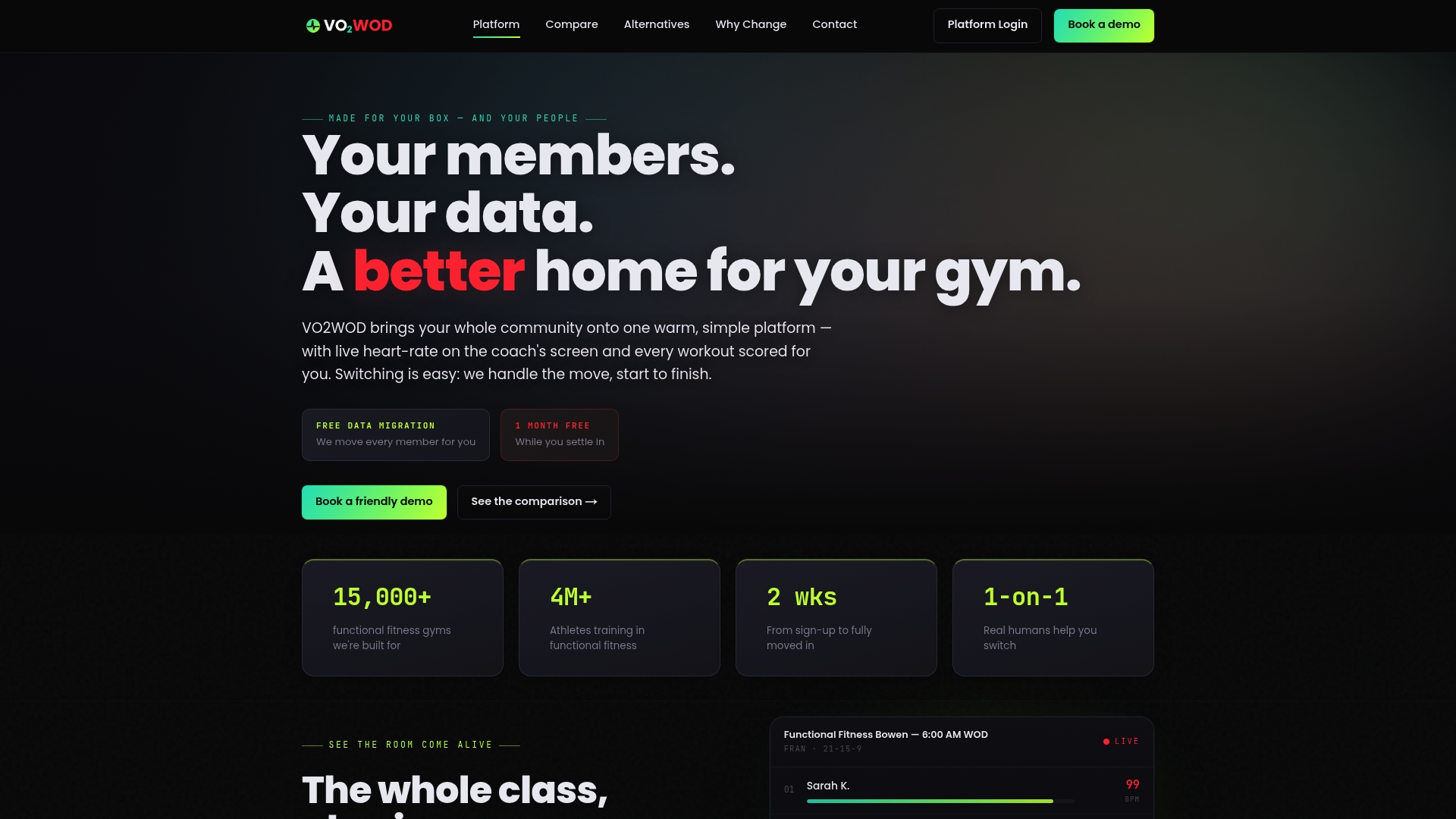
A functional fitness gym has more kinds of data in one place than a typical studio: billing, scheduling, check-in, lead tracking and live athlete performance. VO2WOD is management software built for that setting. It brings membership and recurring billing, class scheduling and reservations, QR or wristband check-in, a lead CRM, in-app messaging, a movement library with personal-record tracking, and live in-class heart rate monitoring with automatic workout scoring into one platform, so you have one team list to manage rather than a login in each of several disconnected tools. That consolidation is what makes a role plan like the one above workable: you decide once who touches billing, who runs a class and who sees performance.
Switching is handled for you: migration is free, you get a month of complimentary service, and a dedicated support team helps with the transition. If you want to see how it compares with the kinds of systems you may be using now, the alternatives overview lays it out, and you can see the platform at vo2wod.com.
Our perspective
We built VO2WOD for functional fitness gyms, where one evening class can involve a coach, a front-desk person, a manager and a room full of athletes whose heart rate and scores are on a screen. Everyone in that room touches a different slice of the information.
Our view is simple. Access should follow the job. A coach should have what they need to run a class and understand their athletes' effort, without having to see the revenue report. Reception should be quick and confident at check-in and bookings. Owners should hold the keys to settings and to who gets access.
That is much easier when billing, scheduling, check-in, leads, messaging and performance tracking live in one platform. You are not reconciling who has access in five places, and you are not tempted to share one login because the fifth tool was a pain to set up. We also take the migration off your hands, so you can set up your team's roles properly from day one rather than inheriting a pile of old habits.
If you take one thing from this article, make it individual accounts. Everything else, from least access to quarterly reviews, depends on knowing who did what.
Marcus
FAQ
What is the difference between a staff role and a staff permission?
A permission is one specific action, like viewing member contact details or issuing a refund. A role is a named group of permissions, like "front desk" or "coach", that you assign to an account. Build roles from the tasks people do, then adjust single permissions only when someone has a real need.
Which permissions should a front-desk employee have?
Check-in, class booking and cancellation, basic member details, lead entry and answering membership questions. Keep pricing, plan editing, full exports, system settings and permission changes with managers and the owner. Refunds are a judgment call: many gyms route anything that changes money to a manager.
Can coaches see member billing information?
They usually should not. Coaches need their class roster, check-ins, notes and live performance data such as heart rate and scores. Billing and contact lists belong with the people who handle payments and member service.
Is it ever okay to share one login at the front desk?
No. A shared login means you cannot trace a refund, an edit or a deleted lead to a person, and you cannot cleanly remove access when someone leaves. Create one account per person, even for part-time staff.
How often should I review staff access?
Once a quarter for the whole list, and immediately whenever someone changes roles or leaves. A short check of who is still employed, what they have switched on and whether they use it catches most problems.
Sources
- Shared SaaS Accounts and How to Pinpoint Them, JumpCloud (May 6, 2025)
- AC-6: Least Privilege, NIST SP 800-53 control overview