
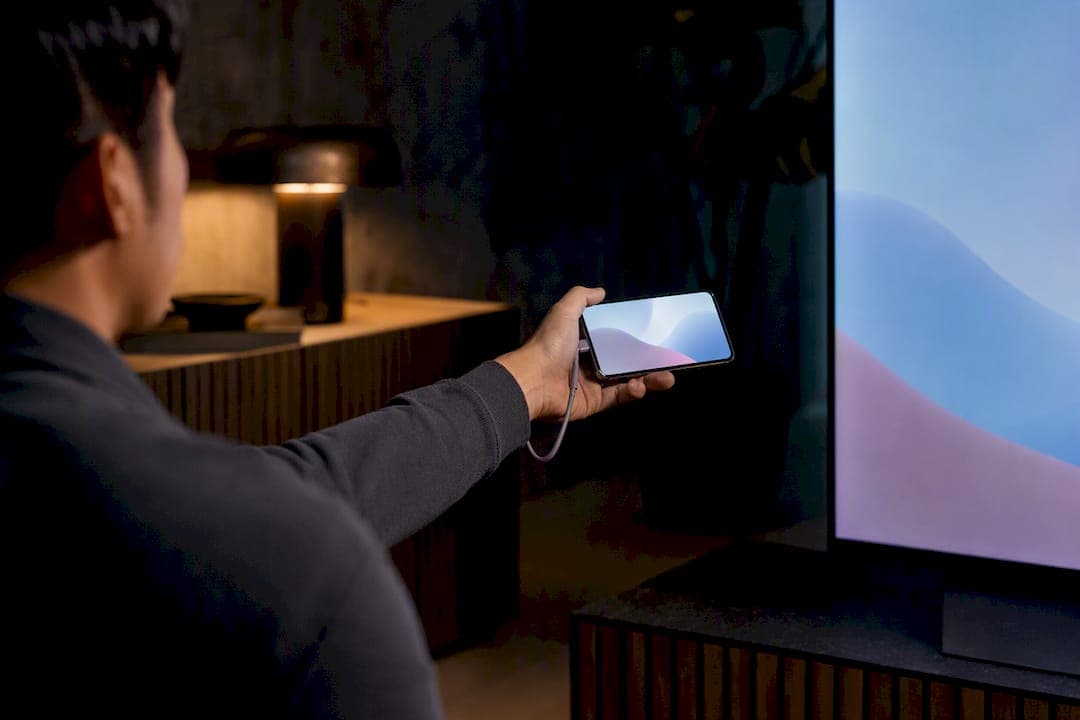
Use AirPlay if you're on an iPhone, iPad, or Mac and your TV supports AirPlay 2. Use Google Cast (Chromecast) for mixed Android and iOS households. Use Miracast or Samsung's Smart View for Windows PCs and older Android phones. If none of that works, a wired HDMI connection or a $30 streaming dongle solves almost every compatibility problem instantly. Mirroring copies your whole screen, including notifications; casting sends just the app content, which is usually the more private choice.
TL;DR:
- Wireless protocols like AirPlay and Google Cast work best when the devices and TV are on the same Wi-Fi network, with Miracast supporting direct device-to-device connections over Wi-Fi Direct.
- Wired HDMI provides the most reliable, zero-latency connection, especially critical for presentations or gaming, but requires compatible adapters and sacrifices mobility.
- Compatibility depends heavily on device and TV support, with older models often needing an inexpensive dongle or smart TV upgrade to enable mirroring features.
- Mirroring consumes significant device battery power due to continuous screen sharing and encoding, so it’s advisable to keep devices plugged in during long sessions.
- Troubleshooting frequently involves ensuring network compatibility, accepting permission prompts on the TV, updating drivers or firmware, and avoiding VPNs or network restrictions blocking device discovery.
Table of Contents
- Comparing Your TV Mirroring Options at a Glance
- How Do You Set Up Mirroring on Your Specific Device?
- When Should You Just Plug in an HDMI Cable?
- Do You Need a Third-Party Mirroring App?
- Why Won't Your Devices Connect for Mirroring?
- Does Your TV Even Support Screen Mirroring?
- Is Mirroring Actually Safe for Presentations?
- Your Fast-Track Setup Checklist
- How Do Video and Audio Quality Actually Compare?
- Should You Worry About Lag During Gaming or Live Use?
- How Much Battery Does Mirroring Actually Use?
- What I'd Actually Tell You to Do
- Where to Go for Model-Specific Help
- Sources
Comparing Your TV Mirroring Options at a Glance
Every mirroring method trades off convenience against compatibility, and none of them wins on every front. Here's how the main contenders stack up.
- AirPlay works best for Apple-only households. It requires an AirPlay 2 compatible TV or an Apple TV box, delivers sharp video with minimal lag, and costs nothing beyond hardware you likely already own.
- Google Cast (Chromecast) is the strongest pick for mixed-device homes. It runs on Android, iOS, and Chromebooks, needs a Chromecast built into the TV or a standalone dongle, and typically costs $30 to $50 for a Chromecast with Google TV.
- Miracast / Smart View suits Windows laptops and Samsung phones best, especially when no reliable Wi-Fi network is available, since it connects device-to-device over Wi-Fi Direct rather than through a router.
- Wired HDMI is the fallback that never fails. It needs a cable and possibly an adapter (around $10 to $25), delivers zero-latency video, and sacrifices the freedom to walk around with your device.
- Third-party apps like Reflector or AirParrot bridge gaps between ecosystems, usually for a one-time or subscription fee, and make sense mainly in classrooms or offices juggling multiple operating systems.
If you're presenting to a boardroom full of laptops running different operating systems, a third-party bridge tool or plain HDMI beats fumbling with three different wireless protocols. If you're just casting a movie from your phone to the living room TV, Google Cast or AirPlay will feel closer to instant. And if you're at a hotel or venue with locked-down Wi-Fi, Miracast's peer-to-peer connection can succeed where everything else fails, since it doesn't require a shared router network.
How Do You Set Up Mirroring on Your Specific Device?
Each operating system handles screen mirroring differently, and the steps below cover the three device families you're most likely working with.
iPhone, iPad, and Mac (AirPlay):
- Confirm your TV has AirPlay 2 built in, or connect an Apple TV box to any HDMI port.
- Open Control Center on iPhone or iPad, tap Screen Mirroring, and select your TV from the list.
- On a Mac, click the Control Center icon in the menu bar, choose Screen Mirroring, and pick your TV.
- Accept any on-screen pairing code if your TV requests one.
Android phones and Chromebooks (Cast, Smart View, or Miracast):
- Pull down your notification shade and tap Cast (or Smart View on Samsung devices).
- Select your TV or Chromecast device from the list that appears.
- If your TV lacks Google Cast support, check its settings for Miracast or Wireless Display instead, which connects directly over Wi-Fi Direct without needing the same network.
Windows PCs (Miracast / Windows Cast):
- Press Windows key + K to open the Cast panel.
- Select your TV or wireless display adapter from the list.
- If nothing appears, go to Settings > Apps > Optional Features and install Wireless Display, a feature Microsoft documents in detail for Miracast and wireless display support.
Whatever device you're using, your TV will usually flash a permission prompt or PIN code the first time you connect. Accept it, and the pairing should stick for future sessions on the same network.
Pro Tip: Rename your TV in its network settings to something obvious, like "Living Room TV," before you start. When three devices in the house are all named "Samsung 6 Series," you'll waste five minutes guessing which one to tap.
When Should You Just Plug in an HDMI Cable?
Wired HDMI beats every wireless method for one simple reason: it doesn't care about your Wi-Fi. No dropped frames, no buffering, no pairing prompts that time out mid-presentation. If you're pitching a client or showing a video where a stutter would be embarrassing, plug in.
The catch is you need the right adapter for your device:
- USB-C laptops and newer Android phones need a USB-C to HDMI adapter, widely available for $10 to $20.
- iPhones and iPads with Lightning ports need Apple's Lightning to Digital AV Adapter, which also passes through charging power.
- Older Android phones may support MHL (Mobile High-Definition Link), letting a micro-USB cable carry both video and charging.
The trade-off is mobility. You're tethered to the TV, and depending on the adapter, you may be splitting power between charging your device and driving the display. For a five-minute demo, that's a non-issue. For a two-hour movie night, keep a charger handy.
Do You Need a Third-Party Mirroring App?
Sometimes the built-in protocols just don't talk to each other, and that's where dedicated software earns its keep. If your office runs a mix of Windows laptops, Chromebooks, and iPads all needing to hit the same conference room screen, a single native protocol won't cover everyone.
Tools like Reflector and AirParrot work as receivers, turning a laptop or dedicated box into a target that accepts AirPlay, Google Cast, and Miracast streams simultaneously. Ditto takes a similar approach but leans harder into classroom and enterprise use, offering centralized management and broader device compatibility than any single native protocol provides on its own.
- Best for: schools, offices, and mixed-device environments where you can't standardize on one ecosystem.
- Typical cost: free trials with paid tiers, often $15 to $50 per license depending on features.
- Caveats: these tools still run over your local network, so the same VPN and firewall issues that block Chromecast can block them too, and centralized management features mean IT visibility into what's being shared.
For a single household with one TV, this is overkill. For a business juggling five device types in one room, it can be the only thing that actually works reliably.
Why Won't Your Devices Connect for Mirroring?
Most mirroring failures come down to five predictable culprits, and working through them in order solves the overwhelming majority of cases.
- Check you're on the same Wi-Fi network. Google Cast and AirPlay both require sender and receiver to share a network; a guest network or a separate 5GHz band can silently block discovery.
- Turn off any VPN or proxy. These commonly prevent the local device discovery that casting depends on, a known issue flagged directly in mirroring app requirements.
- Restart both devices. A stuck Wi-Fi radio or a stalled casting service causes more failed connections than any actual hardware fault.
- Accept the pairing prompt on the TV itself. Many failed connections are just an ignored permission dialog sitting on the TV screen the whole time.
- Update your OS and Wi-Fi drivers. Outdated Miracast drivers on Windows are a frequent, boring cause of "it just won't find my TV."
- Fall back to wired HDMI if lag persists. Some routers apply AP isolation or guest-mode restrictions that block device-to-device traffic entirely, and no software fix will beat a $10 cable in that situation.
If you're stuck on a network with no router at all, remember that Miracast doesn't need one. It builds its own peer-to-peer Wi-Fi Direct link between your device and the TV, which is exactly why it succeeds in hotel rooms and conference centers where Chromecast fails.
Pro Tip: If your phone finds the TV but the connection drops the moment video starts playing, that's usually a bandwidth issue, not a pairing issue. Move closer to your router or switch the TV to the 5GHz band if it supports one.
Does Your TV Even Support Screen Mirroring?
Before assuming your TV can't do this, actually look. Grab the remote and check the Source or Input menu, along with the general Settings or Network menu, for labels like Screen Mirroring, Wireless Display, or Miracast. Those exact words showing up is your green light.
A quick way to test: pull up Control Center or your Cast menu on your phone and see if the TV shows up in the list at all. If it does, you're set. If it doesn't, you have three affordable upgrade paths:
- Chromecast with Google TV ($50) adds Google Cast and a full smart TV interface to any HDMI port.
- Apple TV 4K ($130) is the cleanest choice if your household leans heavily Apple, adding AirPlay 2 plus a proper app ecosystem.
- Roku Express ($30) is the budget option, handling casting from most apps without the premium price tag.
- A basic Miracast dongle ($20 to $30) is the cheapest fix if you just need Windows or Android mirroring without extra smart TV features.
A cheap HDMI dongle is often the fastest way to modernize an old TV without buying a new one.
Is Mirroring Actually Safe for Presentations?
Screen mirroring shows everything on your display, texts, calendar alerts, that embarrassing autocorrect included. Casting is different: it sends just the app's video stream, so a text message popping up mid-meeting isn't a risk.
Before you mirror anything in a room full of people, turn on Do Not Disturb first. It takes ten seconds and saves you from a notification nobody needed to see. Stick to a trusted home or office Wi-Fi network rather than public or open networks, since those often block the local discovery mirroring depends on anyway. And if you connected to a TV in a conference room or rental property, remove that pairing from your device's settings afterward. Leaving it live means the next guest could technically reconnect to a display your device still remembers.
Your Fast-Track Setup Checklist
Keep this nearby the next time you need to get a screen onto a TV in under two minutes.
- Confirm both devices share the same Wi-Fi network, or that your TV supports Miracast's Wi-Fi Direct if no network is available.
- Open your device's cast or mirroring control (Control Center, notification shade, or Windows + K) and select the TV.
- Accept the pairing prompt on the TV and check that both audio and video came through.
- If nothing connects within a minute, skip straight to an HDMI cable or dongle. It always works.
How Do Video and Audio Quality Actually Compare?
AirPlay tends to deliver the cleanest 1080p (and on newer devices, 4K) picture with synced audio, largely because Apple controls both ends of the protocol. Google Cast holds up well for streaming apps since it sends the media stream directly rather than compressing a live screen mirror, but full-screen mirroring on Android can introduce visible compression artifacts on fast motion.
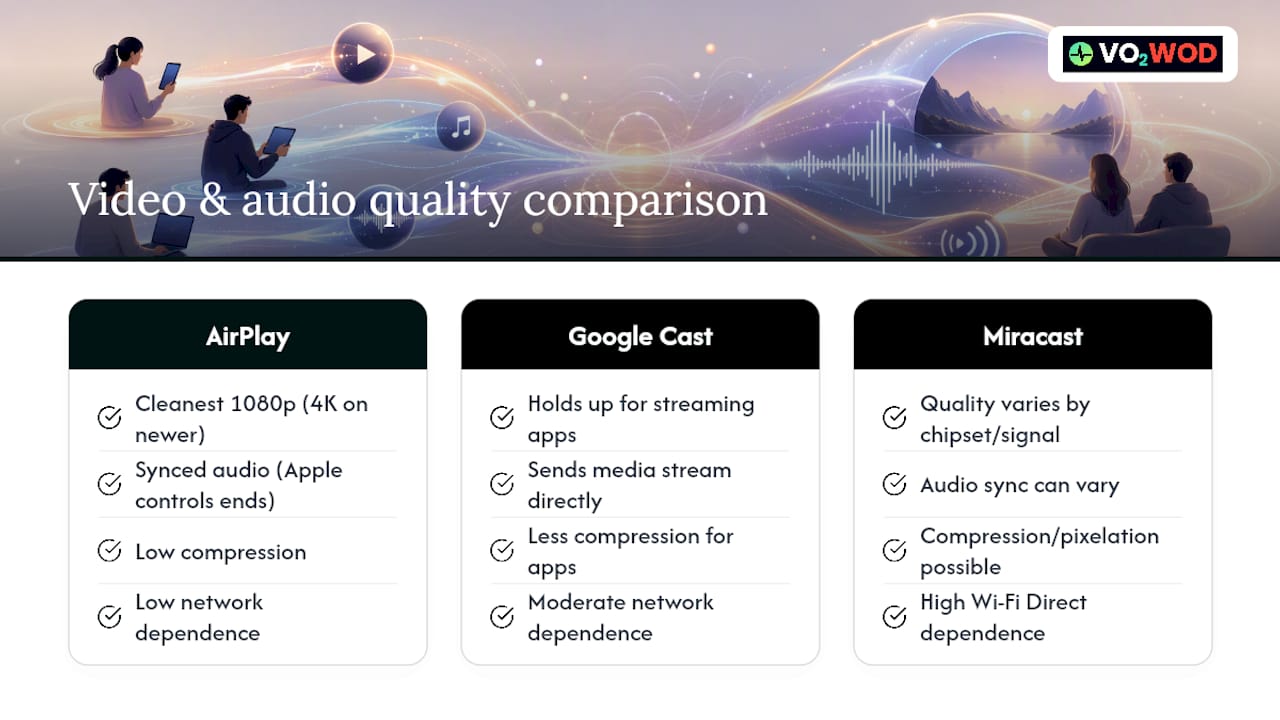
Miracast quality varies more than either of those, since it depends heavily on your Wi-Fi Direct signal strength and the specific chipset in your TV or dongle. On a strong connection, it handles 1080p fine; in a crowded Wi-Fi environment, expect occasional pixelation.
Wired HDMI wins outright on quality. There's no compression step at all, so you get the native resolution and bit-depth your device can output, with audio perfectly synced because it's traveling down the same cable. If you've ever noticed lip-sync drift during a wireless mirroring session, that's compression and buffering doing their thing, something a physical cable simply doesn't introduce.
Should You Worry About Lag During Gaming or Live Use?
Wireless mirroring adds a real delay between what happens on your device and what appears on the TV, typically somewhere in the range of a few hundred milliseconds depending on the protocol and your network congestion. For watching a movie, that's invisible. For gaming or any interaction requiring split-second timing, it's the difference between landing a jump and missing it.
AirPlay and Google Cast both introduce noticeable lag when mirroring full gameplay, since the video has to be encoded, transmitted, and decoded on the TV end before it displays. Miracast tends to perform a bit better for real-time responsiveness because of its direct peer-to-peer link, though it's still nowhere near wired performance.
If you're serious about console or PC gaming on a big screen, skip wireless entirely and connect through HDMI. The lag drops to essentially nothing, since the signal travels as a direct video feed with no encoding round-trip. The same logic applies to video calls or any live presentation where audience members might notice your mouth moving half a second before the words arrive.
How Much Battery Does Mirroring Actually Use?
Mirroring your phone or tablet to a TV drains the battery faster than almost anything else you do with it, and it's easy to underestimate by how much. The screen has to stay on continuously, the Wi-Fi radio runs at full power to maintain a steady stream, and on top of that, the device is actively encoding video in real time.
Expect a noticeably faster drain during an active mirroring session compared to normal use, especially over Miracast or Google Cast, where your device does more of the encoding work than it would sending a simple cast command to a streaming app. Casting a Netflix episode barely touches your battery because your phone just tells the TV what to play and then can go idle. Mirroring your whole screen for two hours is a different story entirely.
If you're planning a long presentation or movie night, plug your device in. Most Lightning and USB-C HDMI adapters pass through power, so wired mirroring solves both the lag problem and the battery problem at once. For wireless sessions, keep a charger within reach if you're going past thirty minutes.
What I'd Actually Tell You to Do
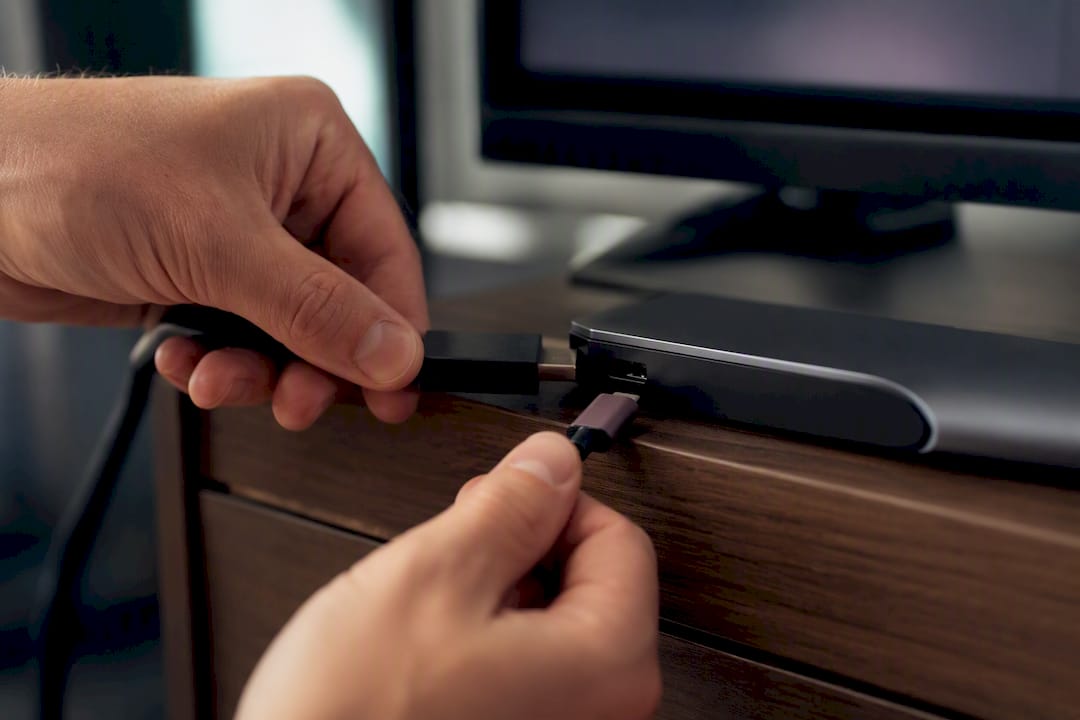
Most people overcomplicate this. Match the method to whatever ecosystem you're already living in: AirPlay if you're all-Apple, Google Cast if your household mixes Android and iOS, Miracast or Smart View if you're stuck with Windows or an older Samsung phone. Then keep a $15 HDMI adapter in a drawer somewhere, because eventually one of those wireless methods will fail you at the worst possible moment.
The mistakes I see repeated constantly aren't technical, they're careless. People leave a VPN running and can't figure out why their phone won't find the TV. They try to mirror on a hotel guest network that blocks device discovery by design. They forget to silence notifications before a client presentation and an incoming text about a dentist appointment flashes across the boardroom screen. None of that is a hardware problem.
If your gym or studio is displaying workout content, leaderboards, or class schedules on a wall-mounted TV, the same compatibility logic applies, and a platform like Vo2wod that's built to push real-time performance data to a screen removes the guesswork of matching mirroring protocols altogether.
— Marcus
Where to Go for Model-Specific Help
For anything beyond general troubleshooting, go straight to the source. Samsung's support pages cover Smart View setup and AirPlay compatibility on newer TV models, plus HDMI fallback advice for older sets. Microsoft's documentation walks through the Windows Cast panel and Miracast driver installation step by step. If you're managing mirroring across a classroom or office with mixed devices, AirSquirrels' guide to enterprise tools like Ditto explains how those platforms bridge multiple protocols at once. Each of these sources covers firmware quirks and model-specific menus that a general guide simply can't account for.
Sources
- 11 screen mirroring devices for presenting wirelessly
- Screen mirroring and projecting to your PC or wireless display - Microsoft Support
- What is screen mirroring and how do I use it with my Samsung TV and Samsung mobile device? - Samsung UK
- The ultimate screen mirroring guide - AirSquirrels (Ditto)
- Best Miracast screen mirroring options - Tom's Guide